Analytics Documentation
Accessing the Analytics Section
To open the Analytics section:
- Go to the servvAI plugin in your WordPress dashboard.
- Click on Analytics in the side menu bar.
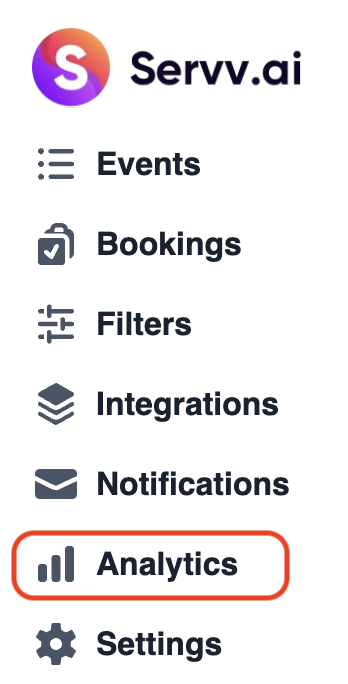
The Analytics section contains the following tabs:
- Revenue
- Resistant
- Event
- Filter
Revenue Tab
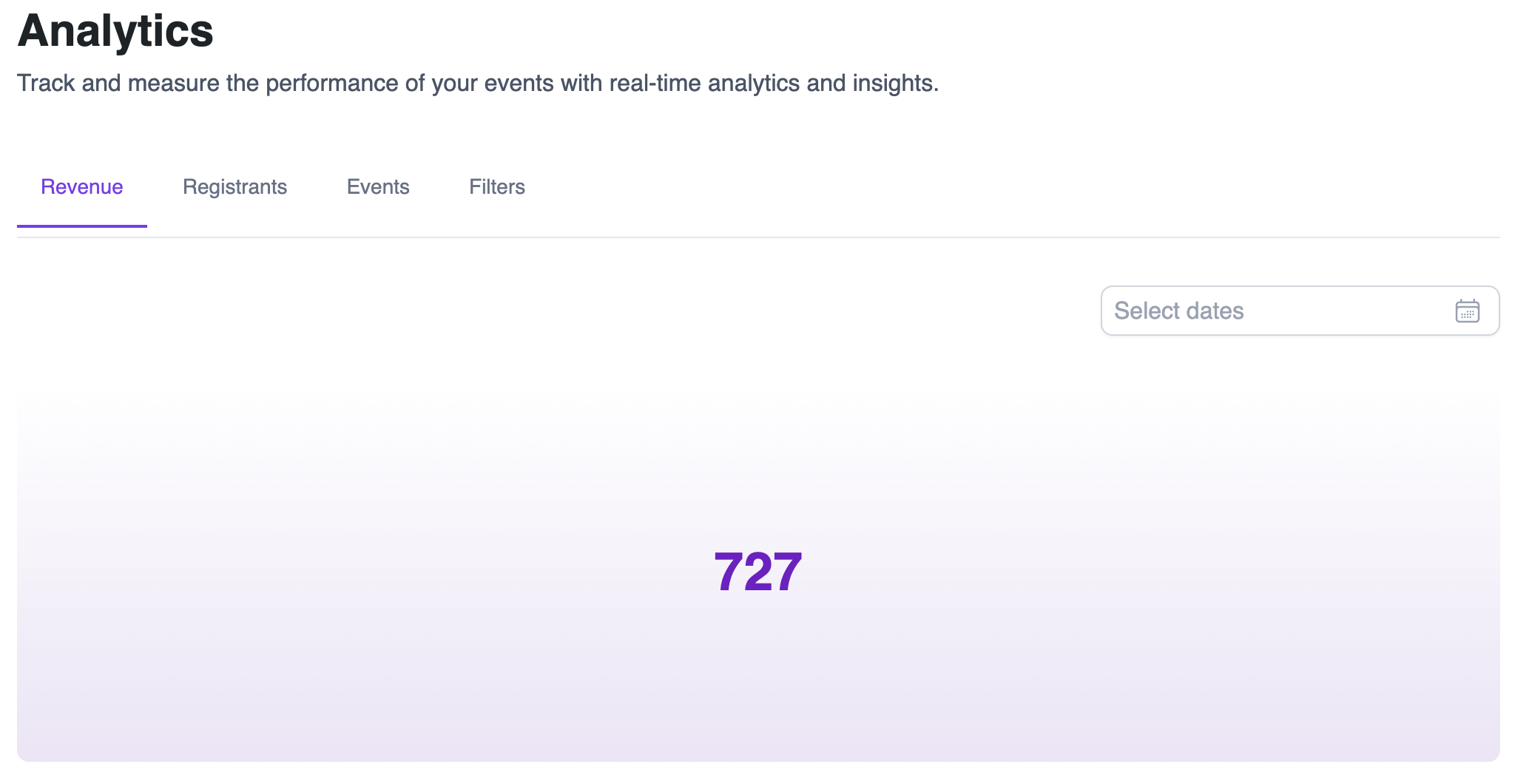
- Default View: Displays all revenues.
- Filtering Revenues: Use the Date Picker to select a date range.
- After selecting the range, the system will display the revenue between the chosen dates.
Registrant Tab
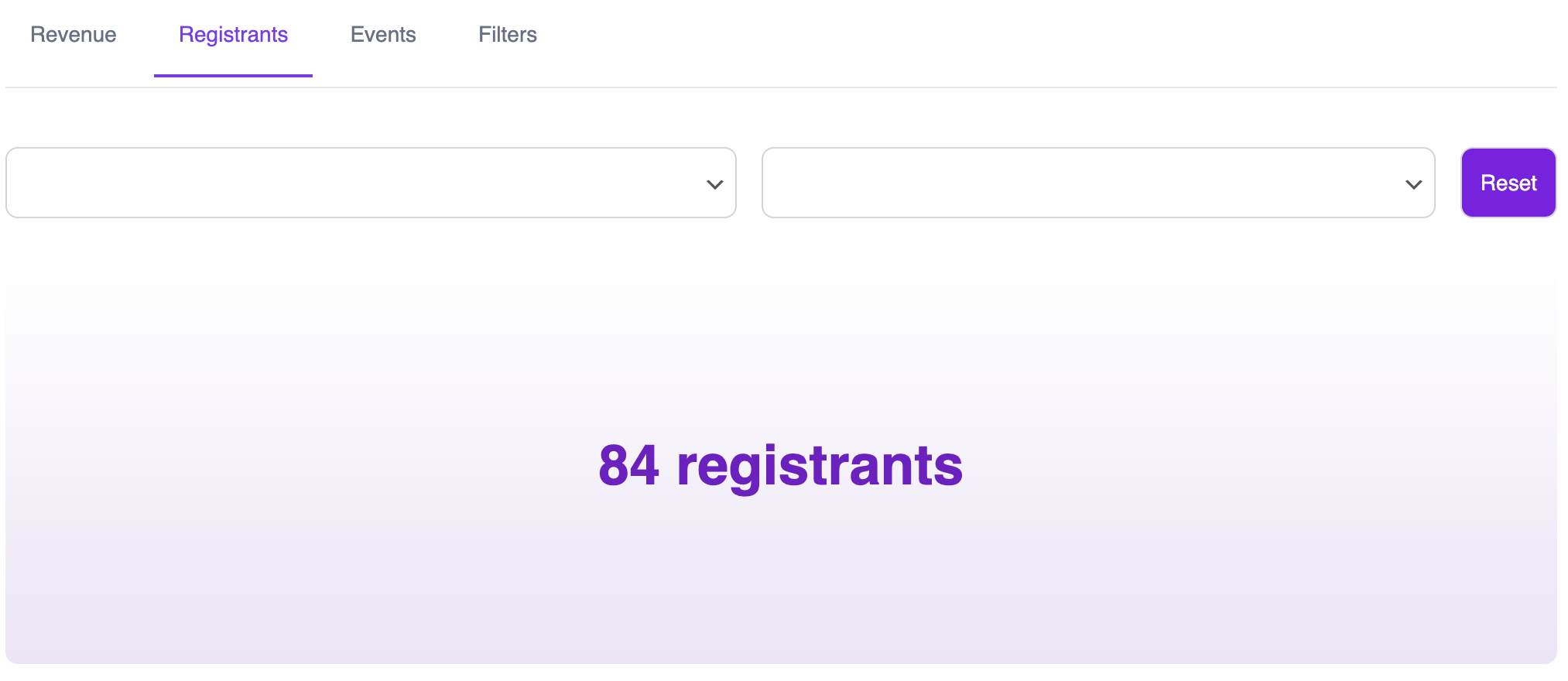
- Default View: Shows all resistants.
- Filtering by Month and Year: Two dropdown menus are available: - Month Selector - Year Selector
- Select a specific month or year to view resistants for that period.
-
A Reset button is provided to clear the selection.
Event Tab
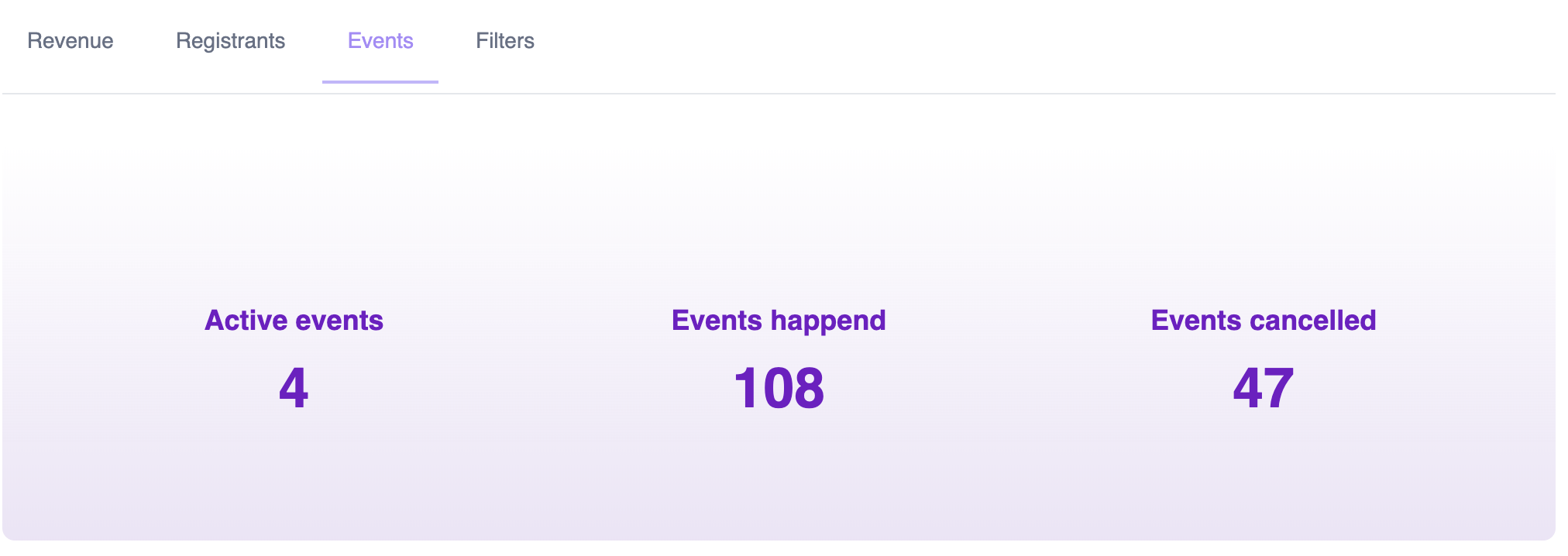
Shows the total number of:
- Active Events
- Events Happened
- Cancelled Events
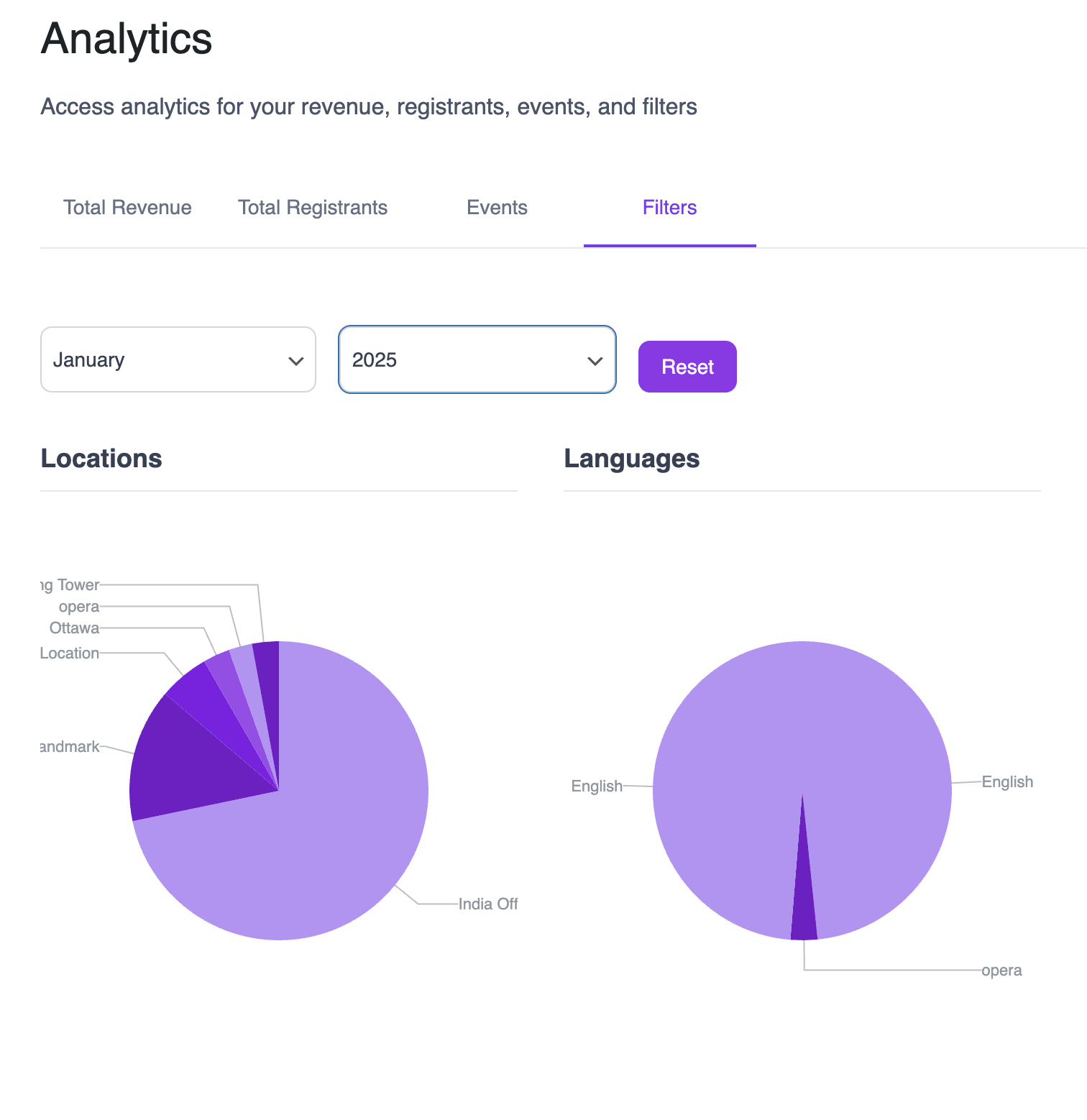
Filter Tab
Displays the count of filters created in the system:
- Language Filters Shows which languages are created, e.g., English, Hindi, or any other language.
- Location Filters Shows location-based filter options, e.g., Canada, Hong Kong, India.
- Category Filters Displays available category-based filter options (based on event or system setup).
Related Links
Create Event – https://support.servv.ai/pages/getting-started/events/createevent/
Create Filter – https://support.servv.ai/pages/getting-started/filters/filters/
Need Help?
If you’re stuck or need further assistance:
- Check our FAQs
- Reach out via Support Request Form
- Chat with us directly from your ServvAI dashboard
We’re here to help — every step of the way.