Zoom Integration Guide
!!! info “⚡ Premium Feature” The Zoom integration feature is available only on Premium plans.
This document provides detailed instructions for integrating Zoom with your ServvAI account to enable seamless video conferencing for your events. This guide is designed for clarity and ease of use, ensuring a smooth setup process. It assumes familiarity with web-based platforms and basic navigation within a user interface.
Note: Ensure you have administrative permissions for your Zoom account and access to the Integration section in ServvAI. Screenshots referenced in this guide are illustrative and may vary slightly based on platform updates.
Prerequisites
- Active ServvAI account with administrative or integration permissions.
- Zoom account with host privileges (Basic, Pro, Business, or Enterprise).
- Stable internet connection and a supported browser (e.g., Chrome, Firefox, or Edge).
Navigate to the Integration Section
Log in to your ServvAI account.
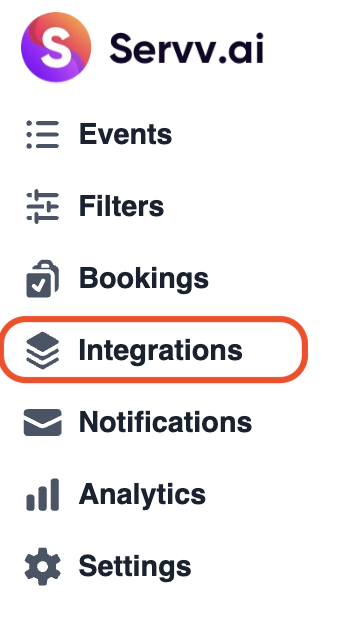
Locate the side menu bar on the left-hand side of the interface.
Click on the Integration option to access the integration dashboard.
Reference: The Integration section is typically represented by a dedicated icon or label in the side menu.
Select Zoom Integration
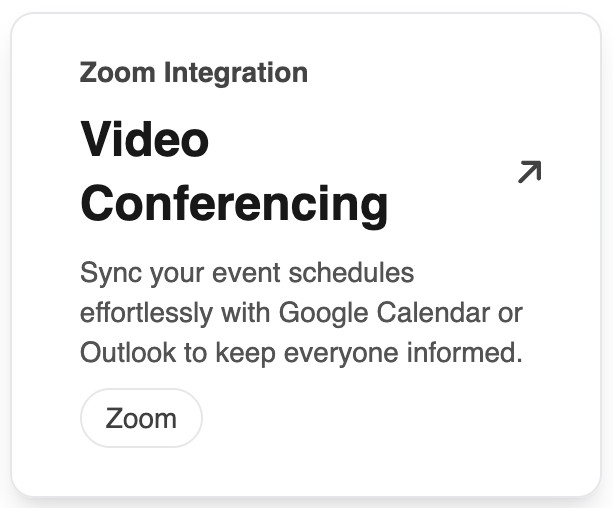
In the integration dashboard, locate the Zoom option.
Click on the Zoom tile or button to proceed with the Zoom integration setup.
Initiate the Connection
On the Zoom integration page, click the Connect button.
You will be redirected to Zoom’s login page.
Sign in to Zoom
Enter your Zoom account credentials (email and password).
Click Sign In to proceed.
If already signed in, you may skip this step.

Authorize ServvAI Access
A permissions screen will display, outlining the access ServvAI requires (e.g., scheduling meetings, retrieving meeting details).
Review the permissions carefully.
Click Allow to authorize the connection.

Verify Connection Status
Once authorized, you will be redirected to the integration dashboard.
Confirm that the Zoom integration status displays as Connected.
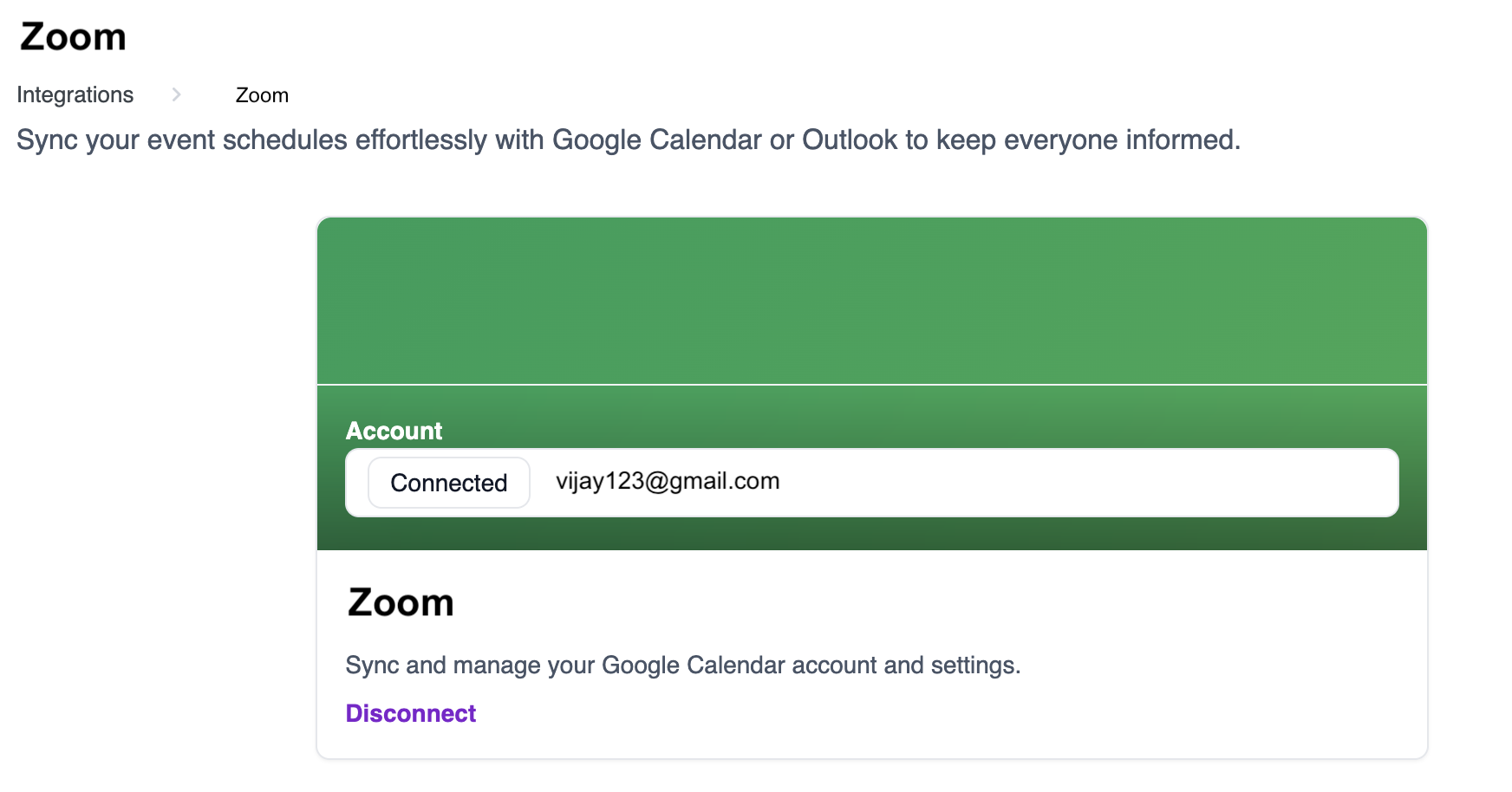
Tip: If the status does not show as Connected, ensure you have the correct Zoom account permissions and repeat the setup process.
How to Disconnect Zoom
To disconnect the integration, navigate back to the Zoom integration section and click the disconnect option.
Post-Integration Notes
- Test Meeting: Schedule a test meeting in ServvAI to confirm the Zoom connection is working.
- Multiple Hosts: Add additional Zoom hosts in your integration settings if required.
- Troubleshooting: If meetings are not being created, reauthorize the Zoom integration or check your Zoom account limits.
Need Help?
- Check our FAQs
- Submit a Support Request Form
- Chat with us directly from your ServvAI dashboard