Navigating to ServvAI Widget Translations
Follow these steps to access the Widget Translations section in ServvAI:
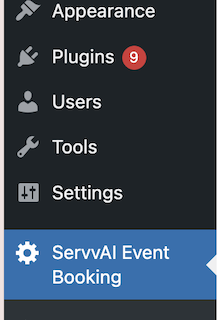
Click on ServvAI
Click on ServvAI Event Booking to open ServvAI.
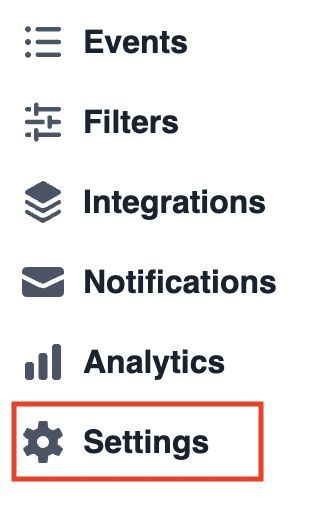
Go to the Setting
Click on the Settings tab in the dashboard menu.
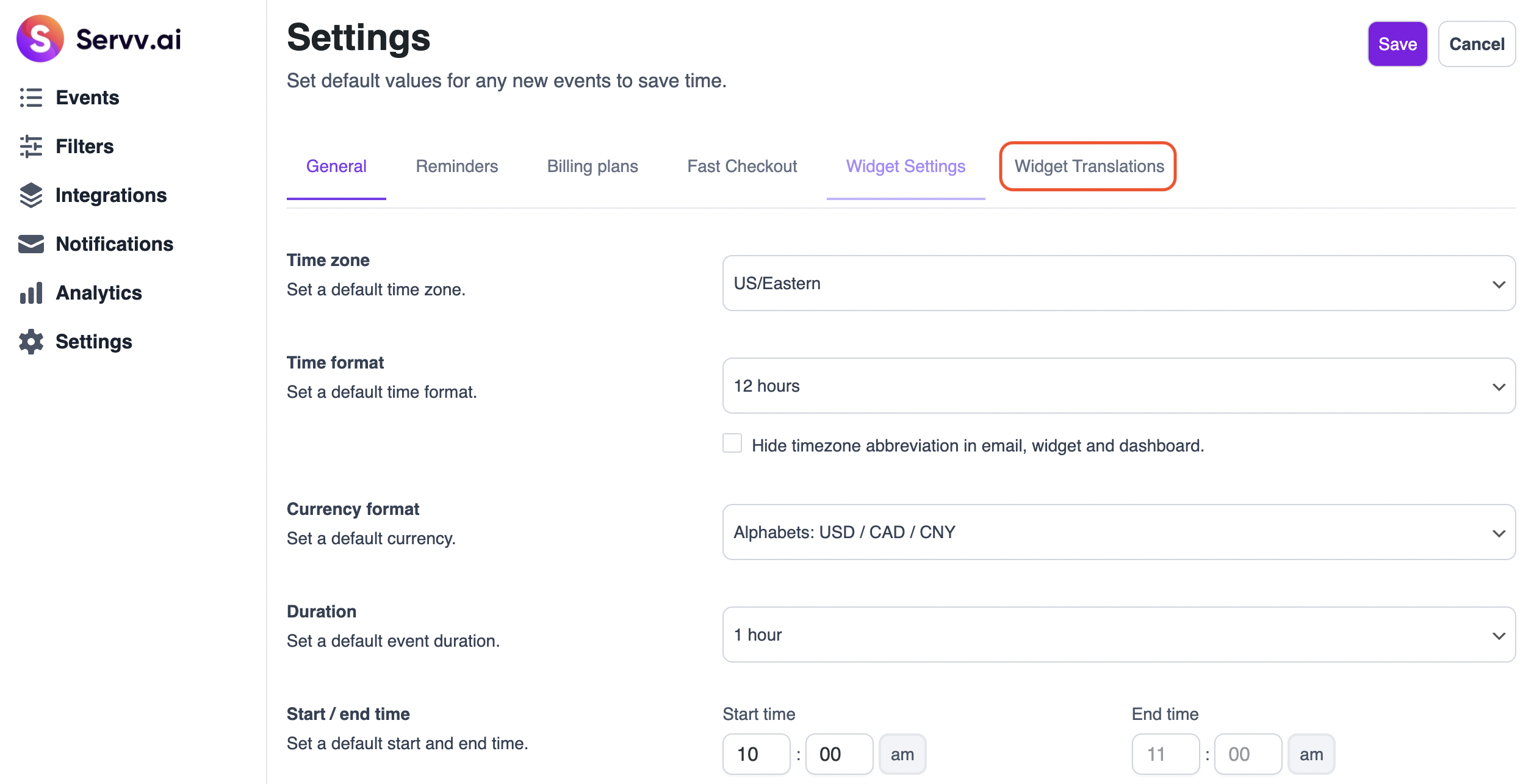
You will now see the following sections:
General SettingsRemindersBilling PlansFast CheckoutWidget SettingsWidget Translation
Click Widget Translations
Open Widget Translations
Translate widget content to different languages.
Default Language
Set the primary language for the widget.
Example: Hindi - हिन्दी, English
Language for Translation
Choose a language to customize widget text labels.
Example: English - English
Global Widget Translations
Customize common labels:
- Price Lable:
Price - Filters Lable:
Filters - Calendar Lable:
Calendar - Price Free Lable:
Free - Day label plural:
d - Day label singular:
d - Hour label plural:
h - Hour label singular:
h - Minute label plural:
m - Minute label singular:
m
Events Widget Translations
Translate UI elements specific to events:
- Open dialog button:
Book event - Events list title:
Events list - Bundles list title:
Bundles list - Widget events list switch label:
Events - Widget bundles list switch label:
Bundles - Bundle add to cart button label:
Add to Cart - Event add to cart button label:
Add to Cart - Live shopping join button label:
Join - Live shopping start countdown:
in - Bundle events list title:
Included events - Share event panel title:
Share this event - Search event placeholder:
Search - Items counter label:
items - Clear filters label:
clear - Book button label:
Book now - Virtual appointment label:
Appointment - Virtual event label:
Virtual - In person event label:
In-Person - Webinar label:
Webinar - Live shopping label:
Live Shopping - Event details button label:
Details - Event description field label:
Description - Today separator label:
Today - Tomorrow separator label:
Tomorrow - Filters step label:
Filters - Result stype label:
Result - Go to filters result button:
Next: Result - Label for month without events:
There are no events scheduled for this month - Next month button:
Next - Available quantity suffix:
Left
After making any changes clikc on save button.
Need Help?
If you’re stuck or need further assistance:
- Check our FAQs
- Reach out via Support Request Form
- Chat with us directly from your ServvAI dashboard
We’re here to help — every step of the way.